The Additional Notes feature allows customers to leave extra information such as description on the product, shipping details, etc., for their order directly inside the cart drawer. This can include requests such as gift messages, delivery instructions, or other custom notes, helping ensure orders are handled exactly as expected.
How Additional Notes Look on the Cart Drawer
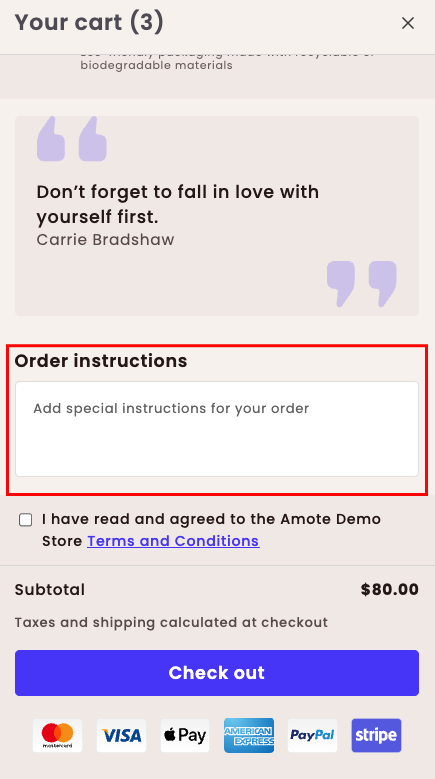
The feature appears as a text box in the cart drawer where customers can type their notes before checkout.
How to Set It Up
Step 1: Enable Amote in Your Theme
Make sure the Amote app embed is enabled in your Theme Editor.
→ Please refer to this article for detailed instructions.
Step 2: Enable Additional Notes
Open Amote in your Shopify Admin.
Go to Upsell & Cross-sell → Cart Drawer.
Enable Additional Notes feature.
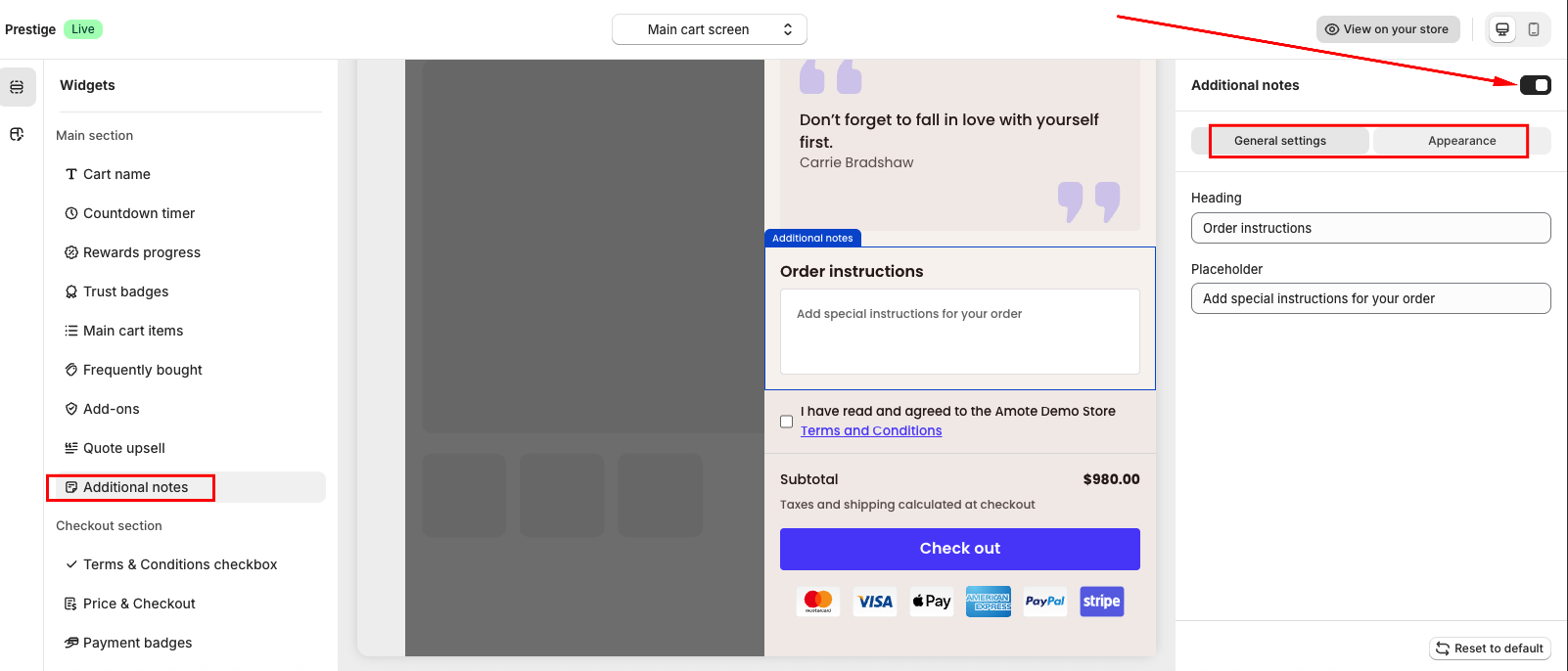
Step 3: Configure Settings and Customization
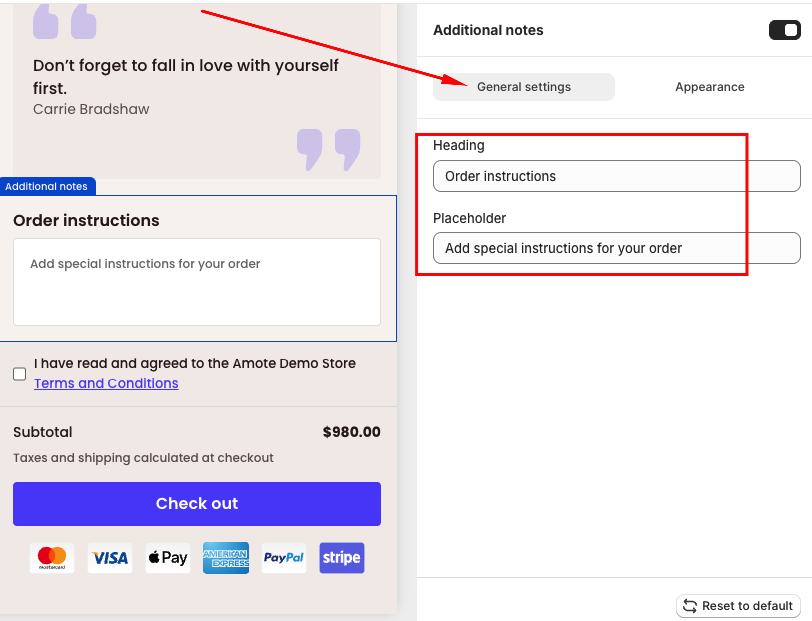
In General Settings, configure the note input:
Heading: The title displayed above the notes field.
Placeholder text: The message shown inside the text box (for example: Add special instructions for your order).
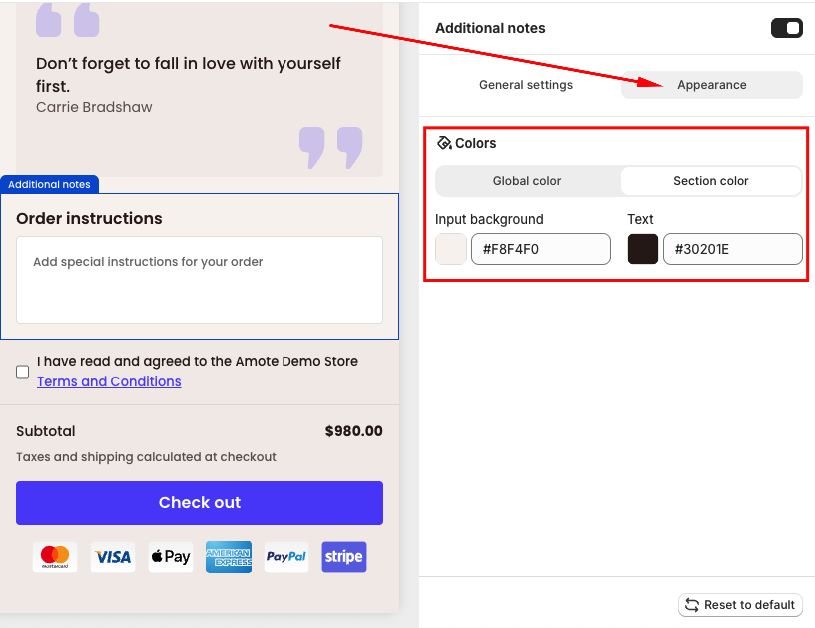
In the Appearance section, you can:
Choose the widget size (Small or Full Widget)
- Apply your Global colors or manually customize contents in Section Color
Step 4: Save and Test
Click Save, then visit your storefront and add products to the cart to test how the Additional notes displays.
If you need further guidance or have any questions, don't hesitate to reach out to our support team via email at support@amote.app or submit a ticket here. We'd be happy to help.
Was this article helpful?
That’s Great!
Thank you for your feedback
Sorry! We couldn't be helpful
Thank you for your feedback
Feedback sent
We appreciate your effort and will try to fix the article