Payment Badges help reassure customers by showing the accepted payment methods directly inside the cart drawer. Displaying familiar payment icons builds trust and helps customers feel more comfortable completing checkout.
How Payment Badges Look on the Cart Drawer
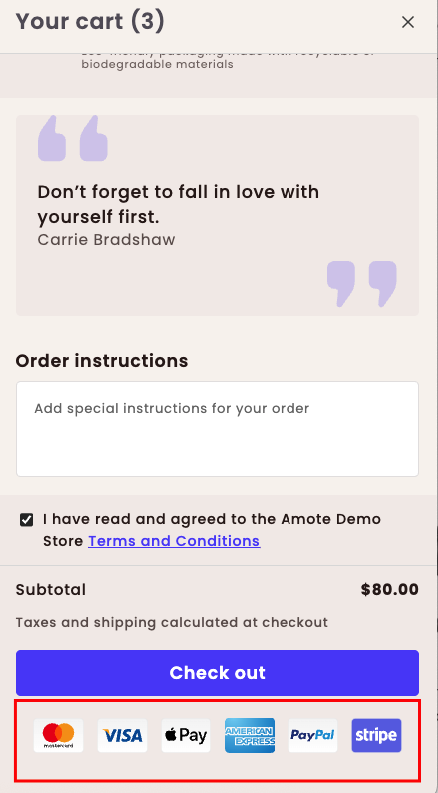
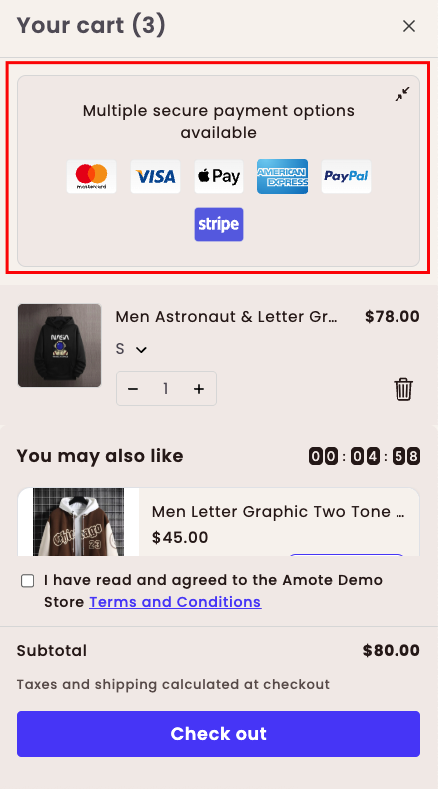
Payment Badges can be displayed either in the Small Widget - at the top or in the Full Widget - at the bottom of the cart drawer.
How to Set It Up
Step 1: Enable Amote in Your Theme
Make sure the Amote app embed is enabled in your Theme Editor.
→ Please refer to this article for detailed instructions.
Step 2: Enable Additional Notes
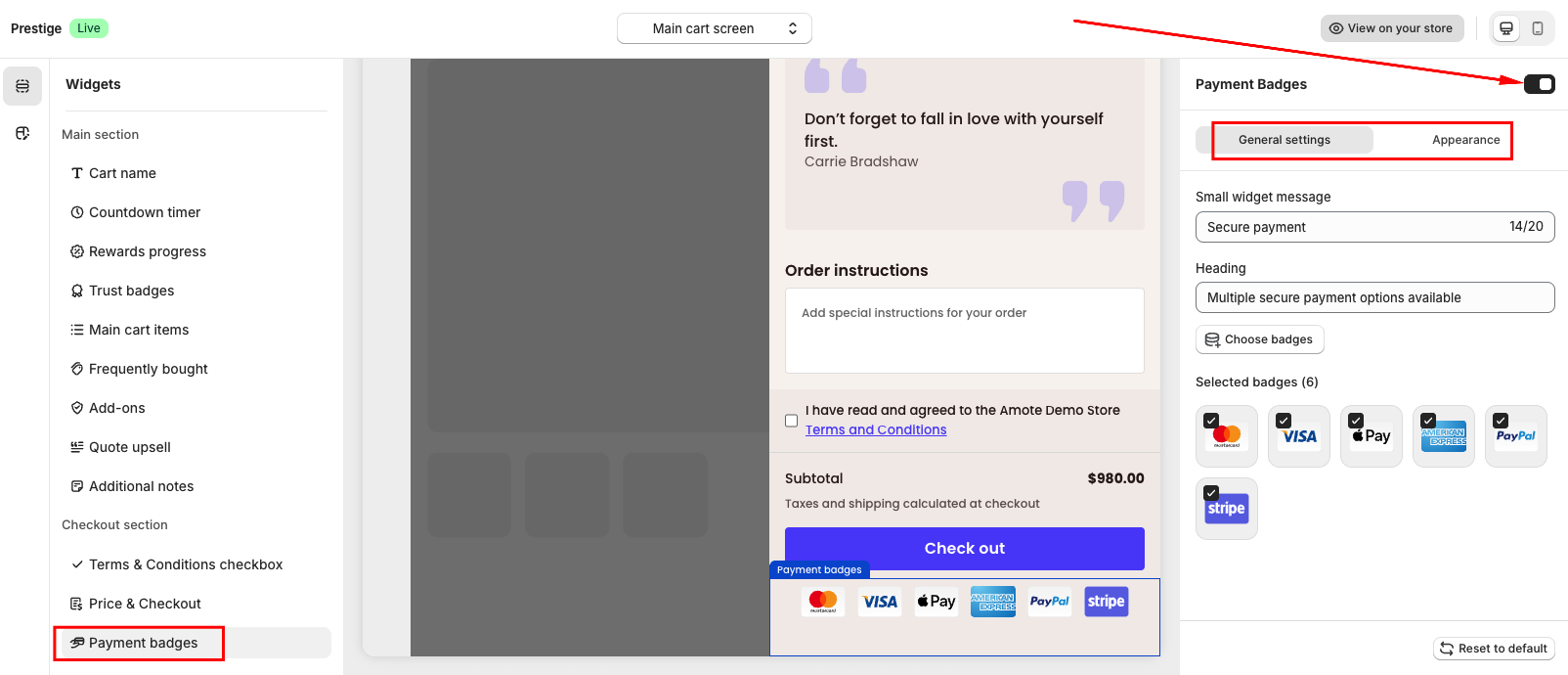
Open Amote in your Shopify Admin.
Go to Upsell & Cross-sell → Cart Drawer.
Enable the Payment Badges feature.
Step 3: Configure General Settings
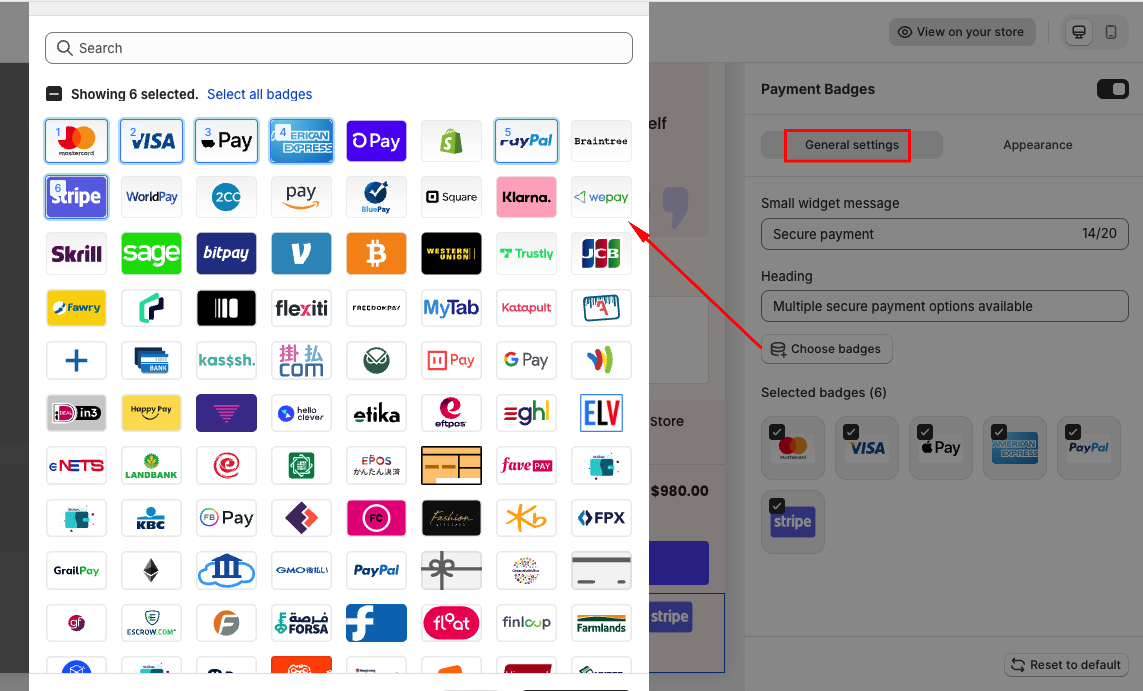
In General Settings, configure the Payment Badges content:
Widget message: The message displayed when using the Small Widget layout
Heading: The title shown above the Payment Badges section
Choose badges: Select the payment method icons you want to display (for example: Visa, Mastercard, PayPal, Apple Pay, etc.)
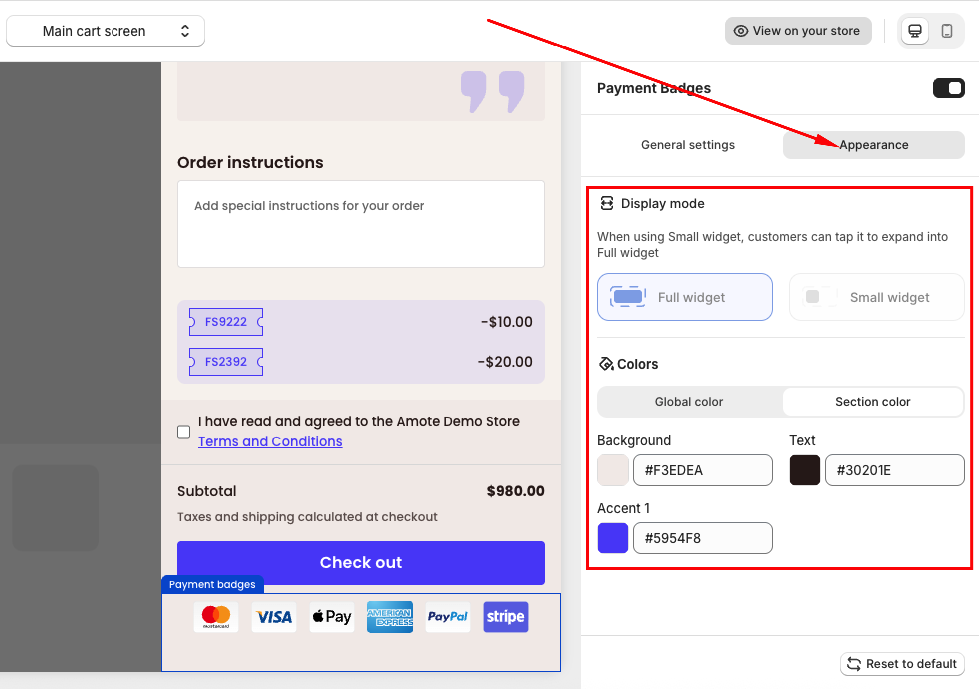
Step 4: Customize Appearance
In the Appearance section, you can:
Choose the widget size (Small or Full Widget)
Apply your Global colors or manually customize contents in Section Color
Step 5: Save and Test
Click Save, then visit your storefront:
Add a product to the cart drawer.
Check that Payment Badges appear correctly.
If you need further guidance or have any questions, don't hesitate to reach out to our support team via email at support@amote.app or submit a ticket here. We'd be happy to help.
Was this article helpful?
That’s Great!
Thank you for your feedback
Sorry! We couldn't be helpful
Thank you for your feedback
Feedback sent
We appreciate your effort and will try to fix the article