Amote Cart Drawer allows you to replace your theme’s default cart with a slide‑out cart that opens instantly after customers add products. This helps improve user experience and increase Average Order Value (AOV) by displaying upsell offers, rewards, and motivational messages directly in the cart.
Step 1: Enable Amote App Embed in Your Theme
Amote Cart Drawer works via Shopify Theme App Embeds.
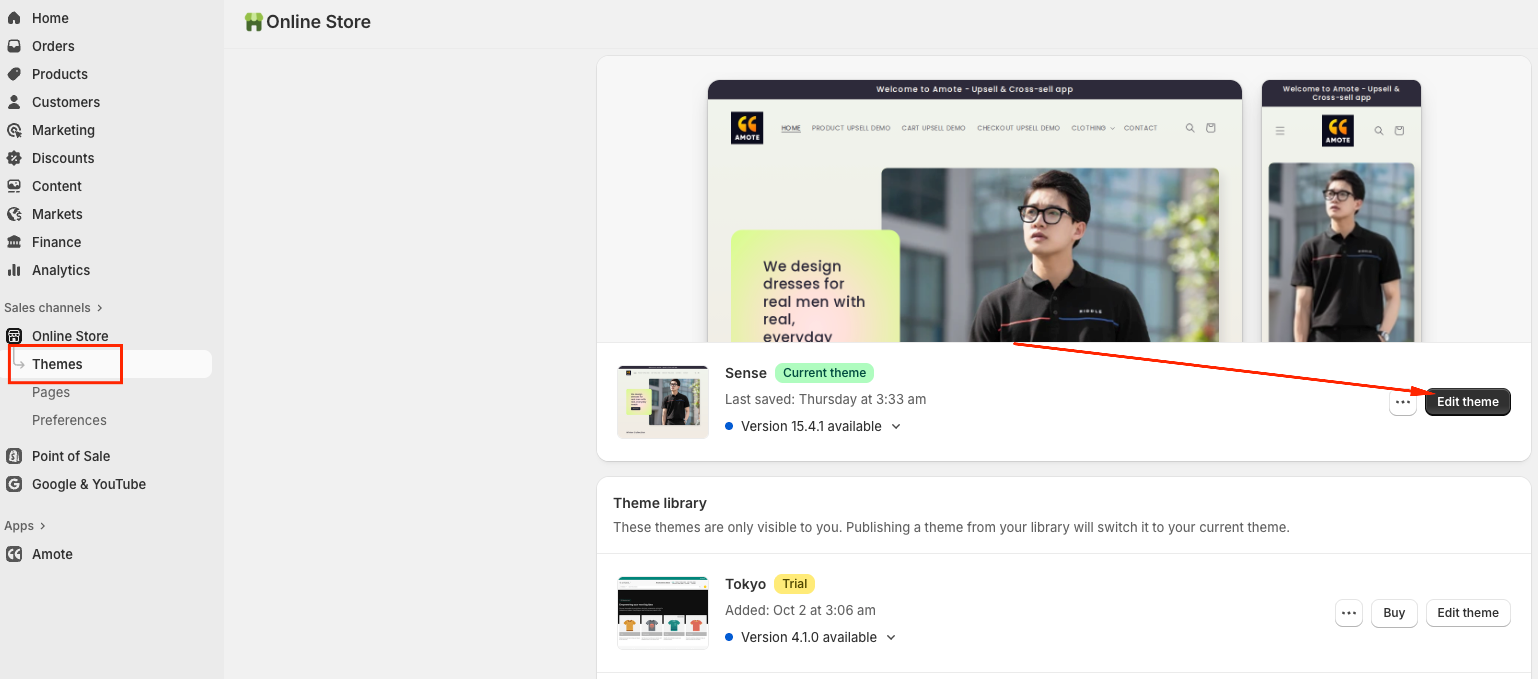
Go to Online Store → Themes → Edit theme:
Open App embeds from the left sidebar → Toggle Amote ON → Click Save:
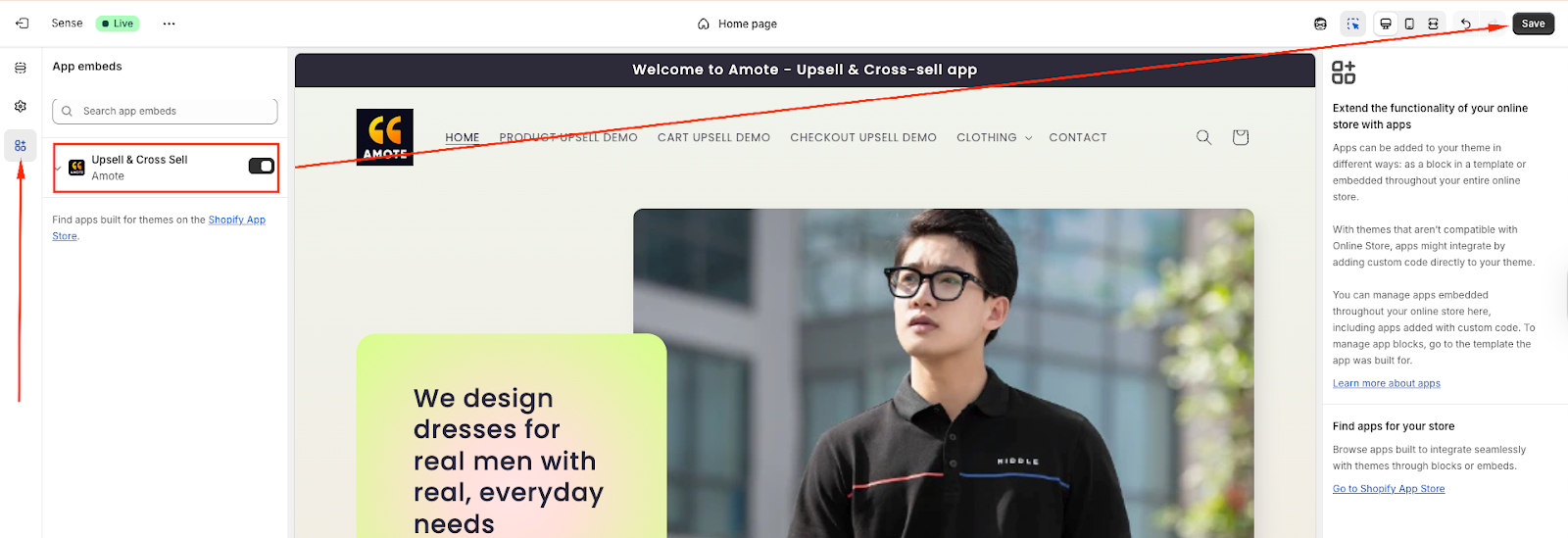
⚠️ This step is required. If the app embed is disabled, the cart drawer will not appear on your storefront.
Step 2: Activate the Cart Drawer in Amote
Open the Amote dashboard.
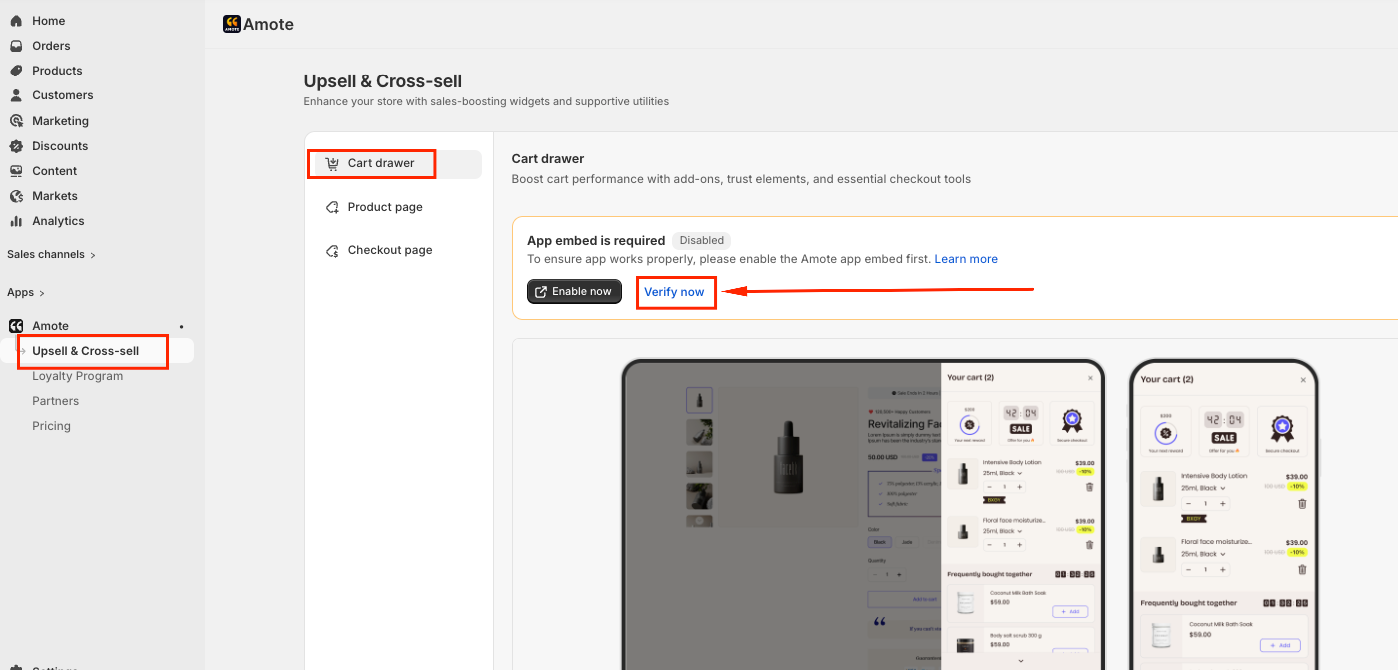
Navigate to Upsell & Cross-sell → Cart Drawer
Click Verify now to update
4. Activate the Cart Drawer and Save:
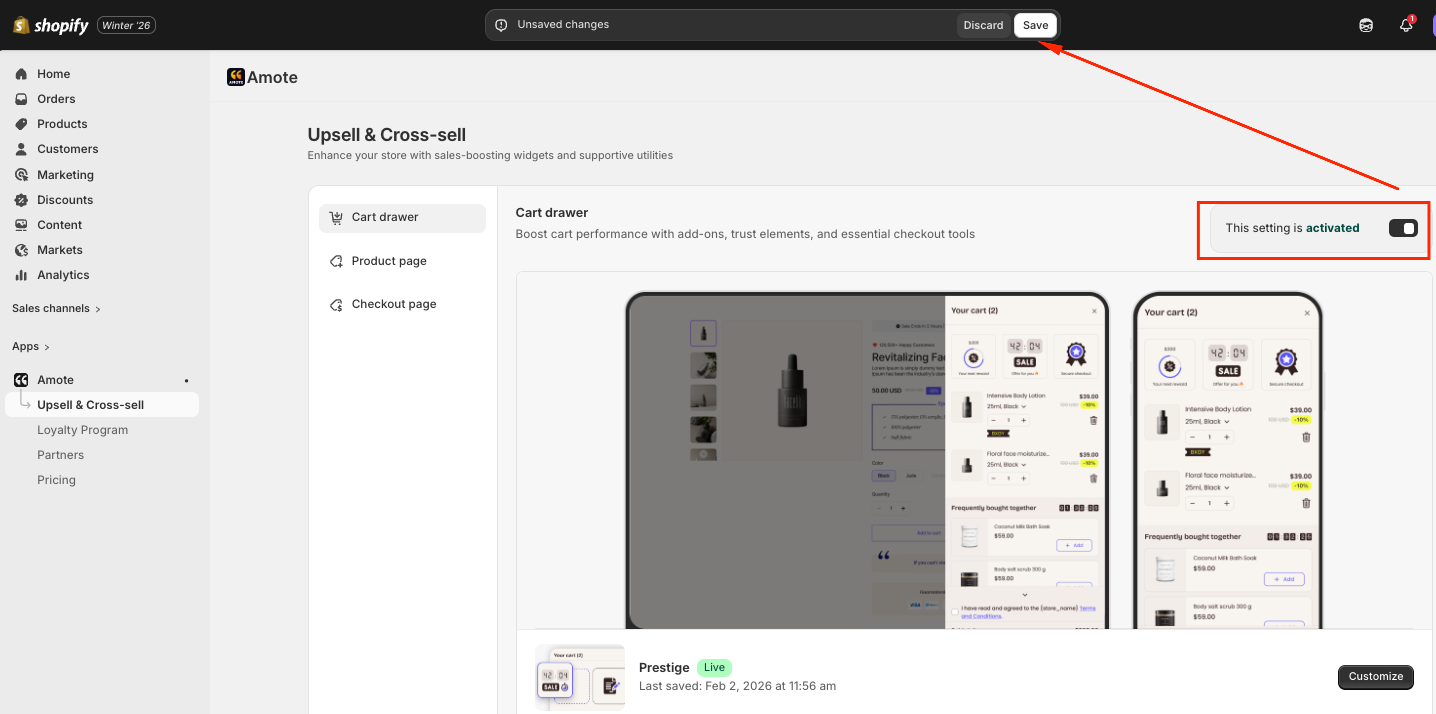
Once enabled, customers will see a cart drawer instead of being redirected to the cart page.
Step 3: Add Amote Widgets to the Cart Drawer
After activating the Cart Drawer, please select "Customize" to add more widgets and customize them:
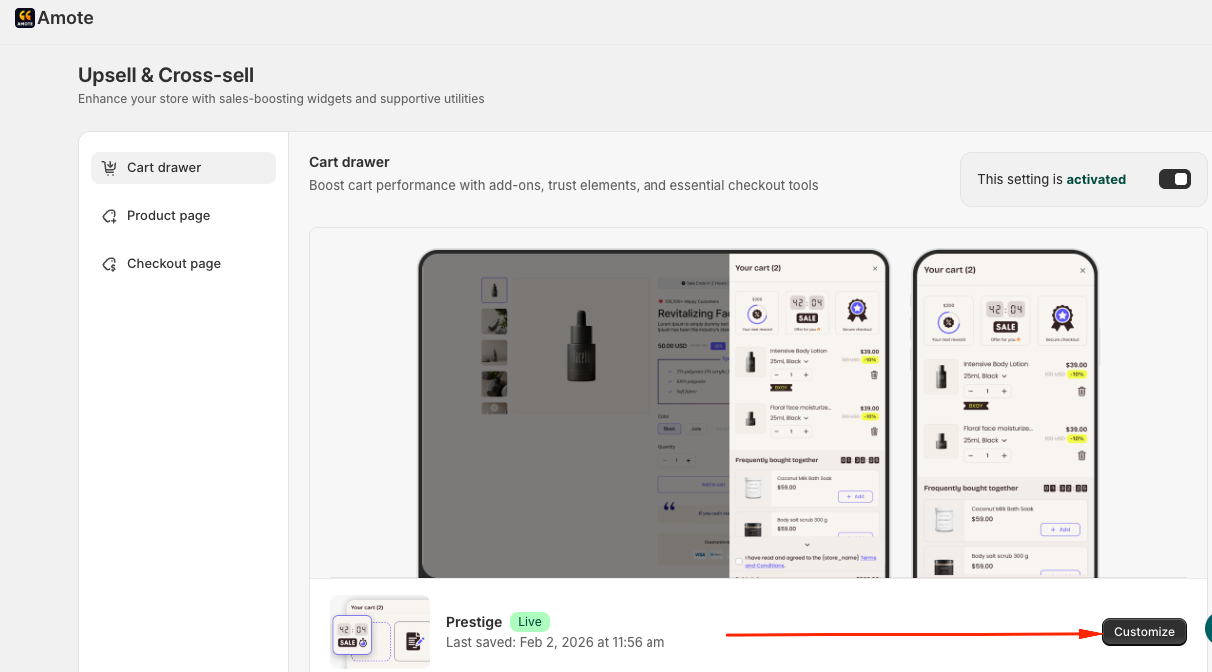
Inside the Amote Cart Drawer, you can have:
Cart name
Countdown timer
Reward
Trust badges
Main cart item
Frequent bought
Add-ons
Quote
Note
Additionally, you can add more widget for you the Checkout section:
Term & condition checkbox
Price & checkout action
Payment badges
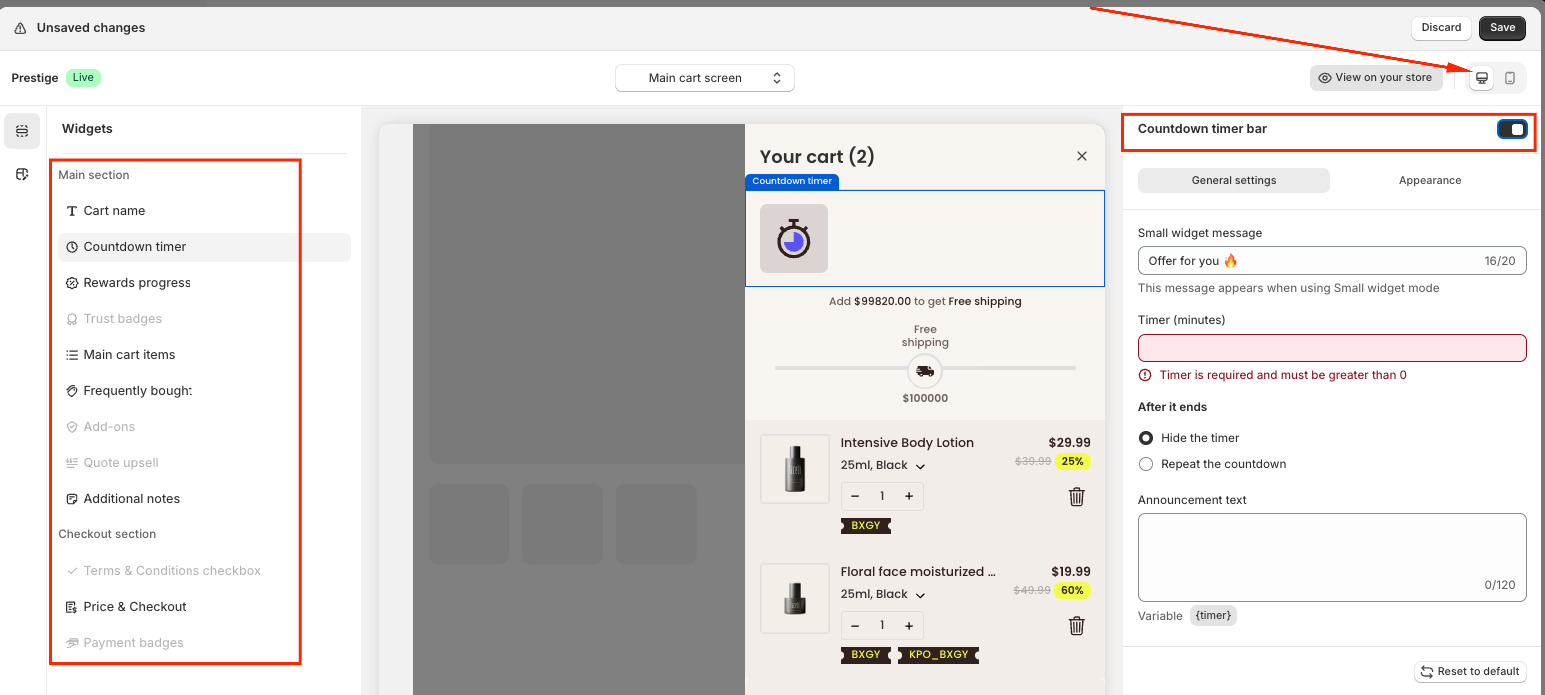
Feel free to add any of our multiple features to your cart. You can preview them on the desktop and mobile in the app's dashboard. Once satisfied, activate them using their toggle. Remember to save your changes.
Step 4: Customize Your Cart Drawer
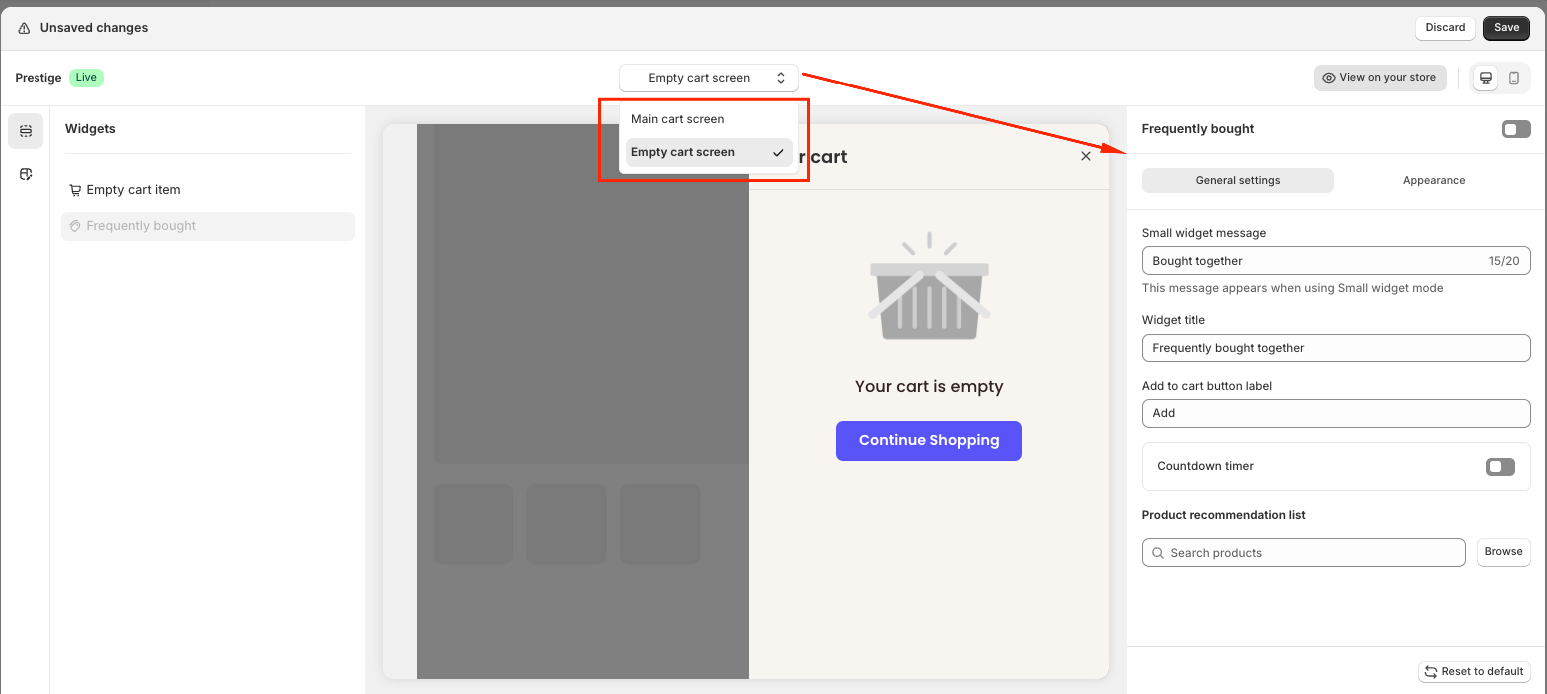
There are two interfaces for you to customize the cart drawer.
Main cart and Empty Cart screen:
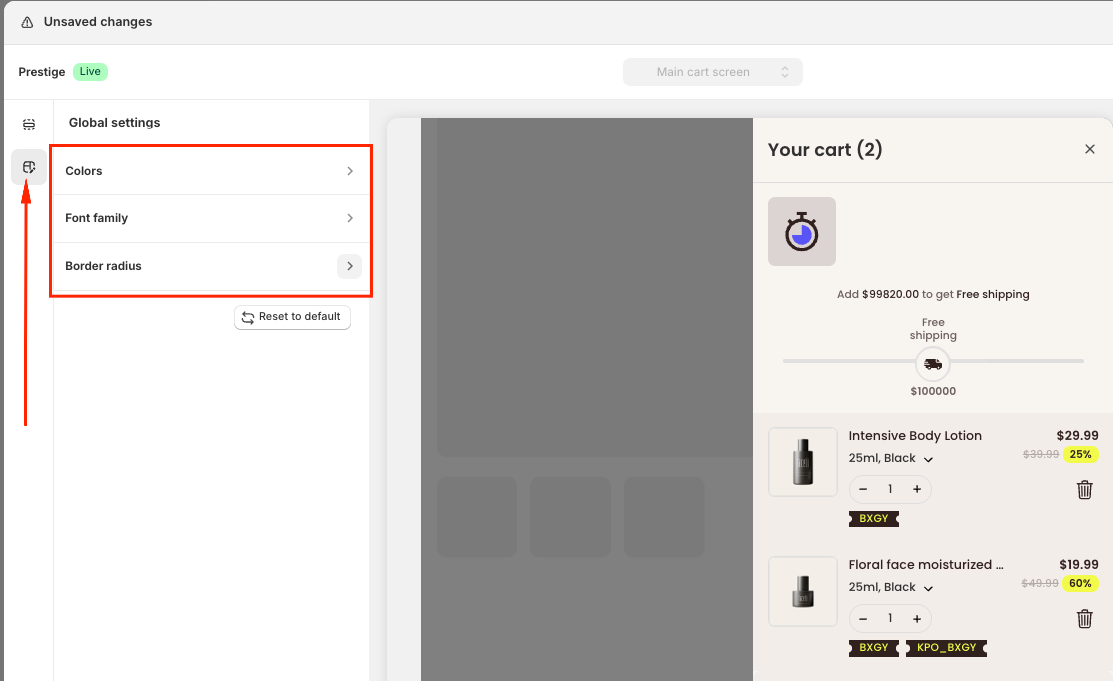
To adjust Color, Font Family or Border Radius, please go to Global Settings:
Step 5: Test the Cart Drawer
Visit your storefront and add a product to the cart.
Confirm that the cart drawer slides in from the side.
Verify that upsells, rewards, and messages are displayed correctly.
If changes do not appear immediately, please refresh the page or clear your browser cache.
Note:
- Amote Cart Drawer only with Shopify Online Store 2.0 themes.
- Only one cart drawer app should be active at a time to avoid conflicts.
- For some themes that already had the cart drawer, we recommend using Amote to replace your default cart to be able to fully manage and customize it.
If you need further guidance or have any questions, don't hesitate to reach out to our support team via email at support@amote.app or submit a ticket here. We'd be happy to help.
Was this article helpful?
That’s Great!
Thank you for your feedback
Sorry! We couldn't be helpful
Thank you for your feedback
Feedback sent
We appreciate your effort and will try to fix the article