The Rewards Progress Bar helps motivate customers to add more items to their cart by visually showing how close they are to earning rewards such as discounts or free shipping. By clearly tracking progress toward a reward, this feature encourages higher spending and helps increase your store’s Average Order Value (AOV).
How the Rewards Progress Bar looks on the Cart Drawer:
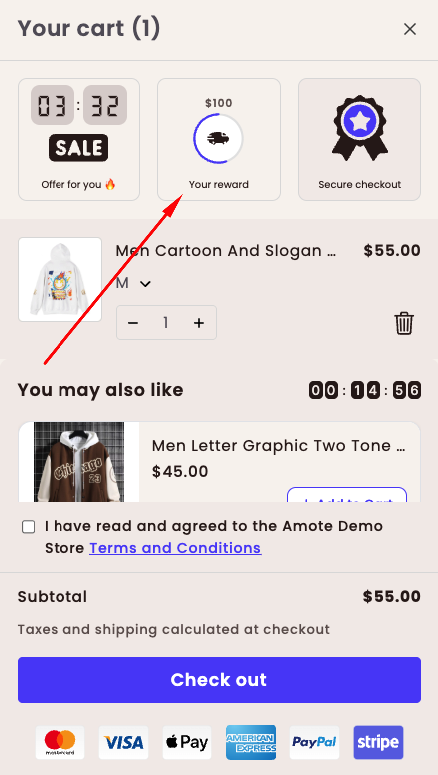
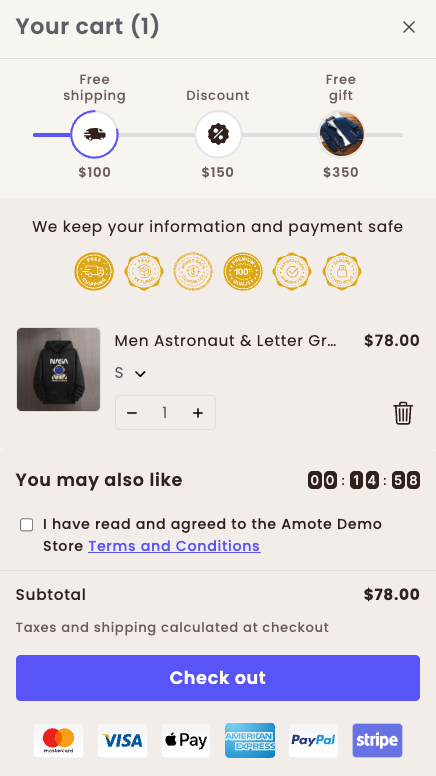
The progress bar appears inside the Amote Cart Drawer and updates in real time as customers add products to their cart.
How to Set It Up
Step 1: Enable Amote in Your Theme
Make sure the Amote app embed is enabled in your Theme Editor.
→ Please refer to this article for detailed instructions.
Step 2: Enable Rewards Progress Bar
Open Amote in your Shopify Admin.
Go to Upsell & Cross-sell → Cart Drawer.
Enable Rewards Progress Bar.
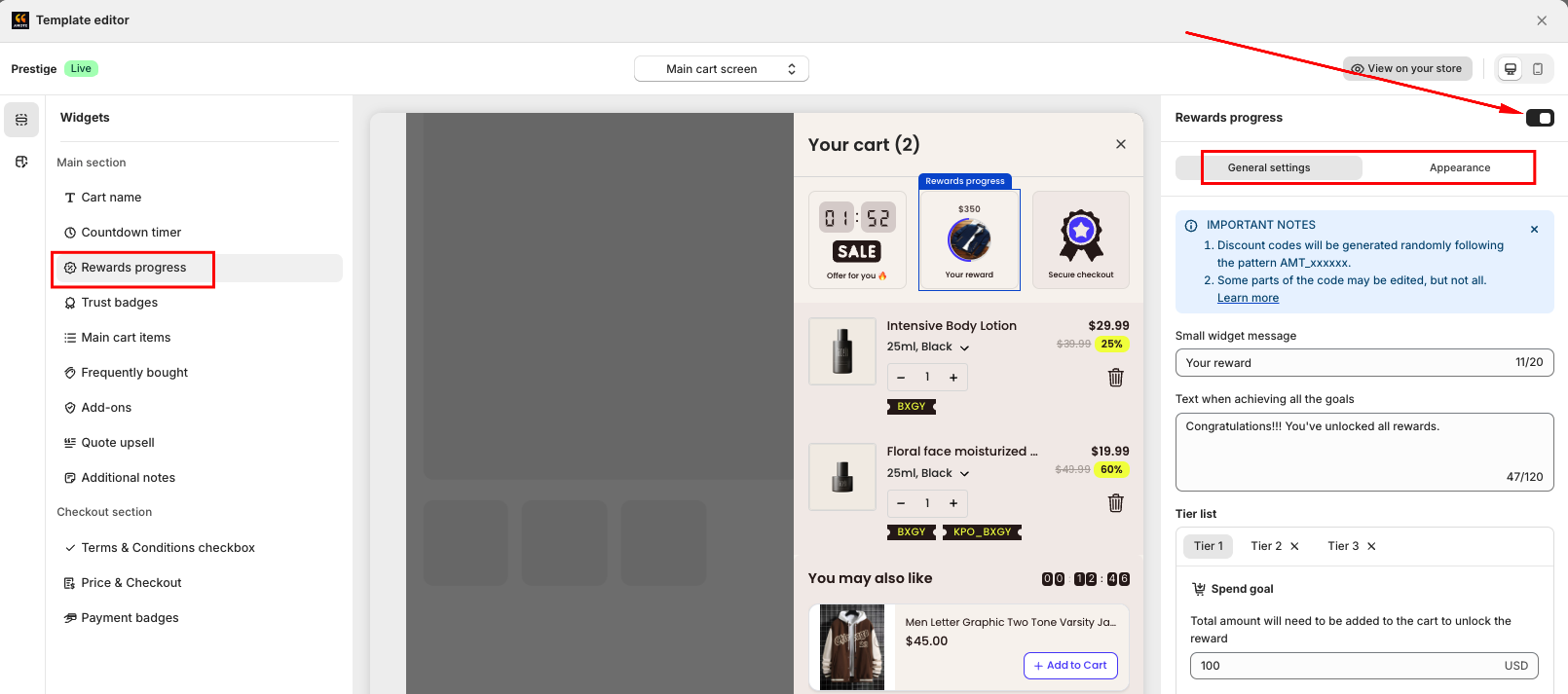
You will see two main sections:
General Settings – Configure reward logic and content
Appearance – Customize the look of the progress bar
Step 3: Configure General Settings
In General Settings, set up the content and reward rules:
Widget message: Text shown while customers are progressing toward a reward.
Text when achieving the goal: Message displayed once the reward is unlocked.
Reward tiers: Choose how many reward tiers you want to offer (up to 3 tiers depending on your plan).
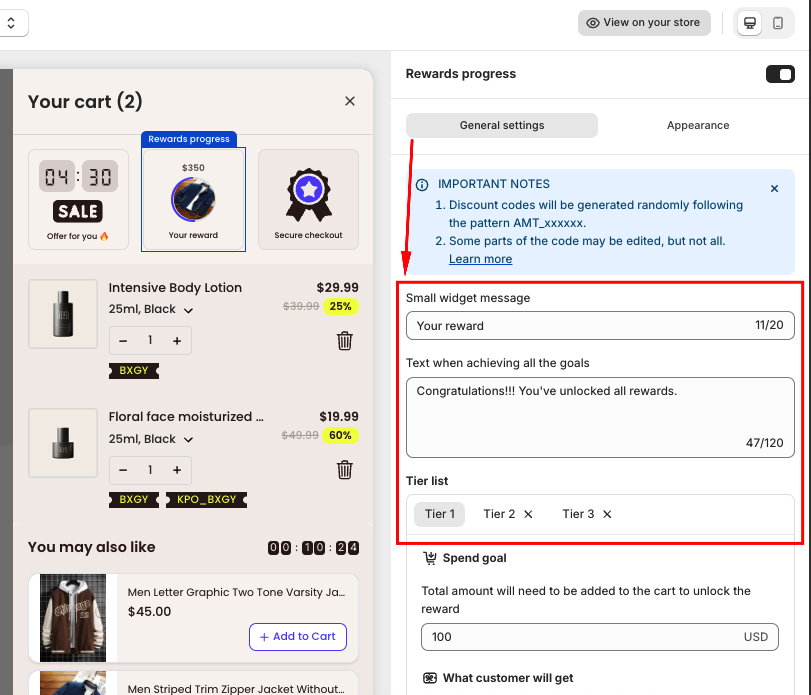
For each tier:
- Set the Spend goal required to unlock the reward.
- Select the Reward type, including: Discount, Free Shipping and Free Gift.
- Customize the text shown before and after the goal is reached.
If you choose:
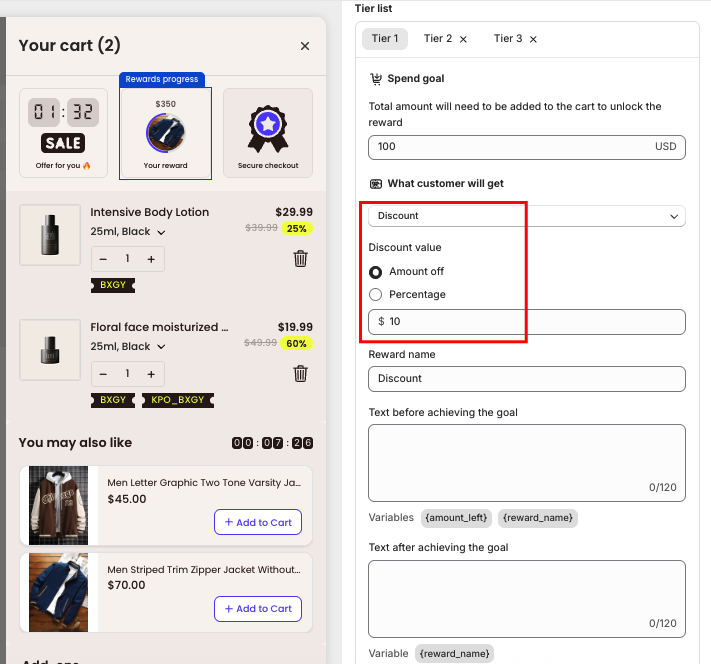
Discount as the reward, you will need to decide whether you want to do it based on the percentage or a fixed amount.
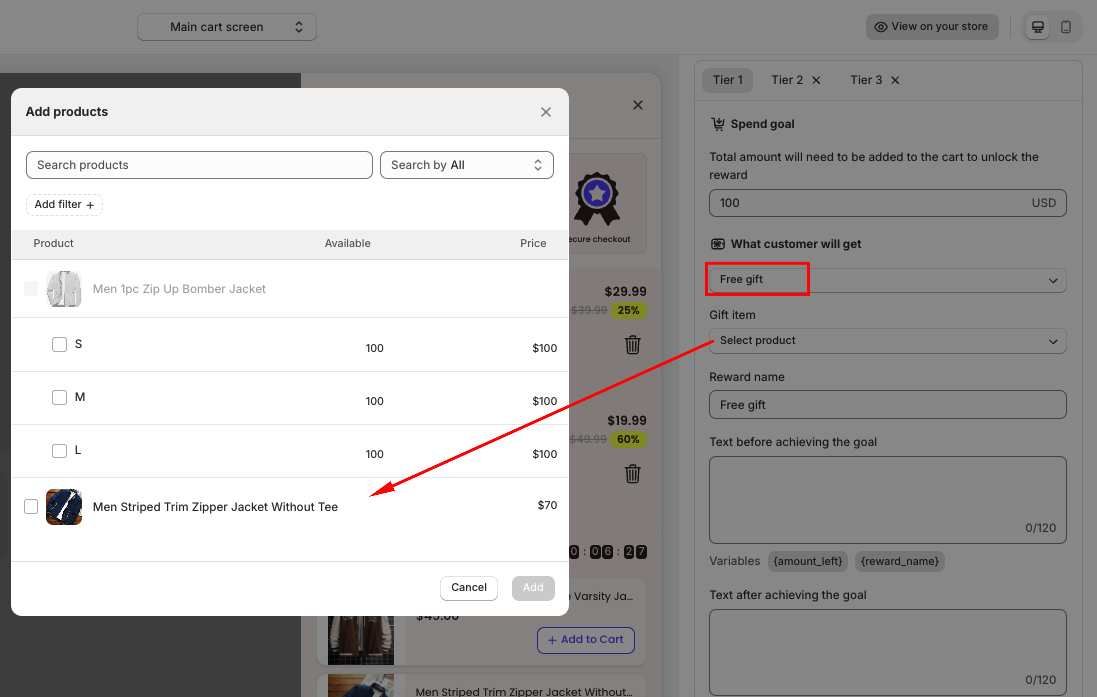
Free gift as the reward, you can choose a list of available products you want customers to be eligible to receive one of them when the spending goal is reached.
Step 4: Customize Appearance
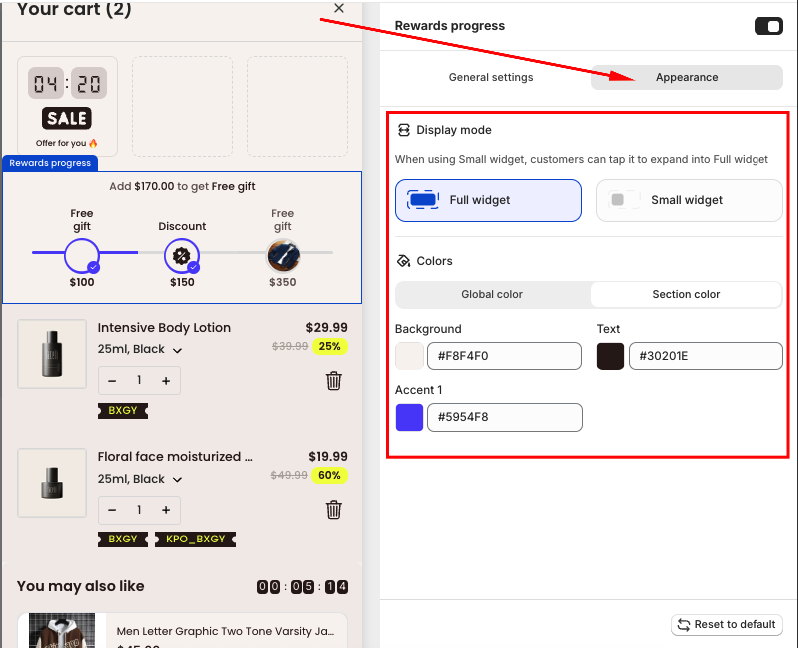
In the Appearance section, you can:
Choose the widget size (Small or Full Widget)
- Apply your Global colors or manually customize contents in Section Color
Step 5: Save and Test
After finishing one tier, you can add 2 more tiers if needed.
Click Save, then visit your storefront and add products to the cart to test how the Rewards Progress Bar works.
If you need further guidance or have any questions, don't hesitate to reach out to our support team via email at support@amote.app or submit a ticket here. We'd be happy to help.
Was this article helpful?
That’s Great!
Thank you for your feedback
Sorry! We couldn't be helpful
Thank you for your feedback
Feedback sent
We appreciate your effort and will try to fix the article